
Antminer S21 Pro Setup Guide: Complete Configuration Tutorial
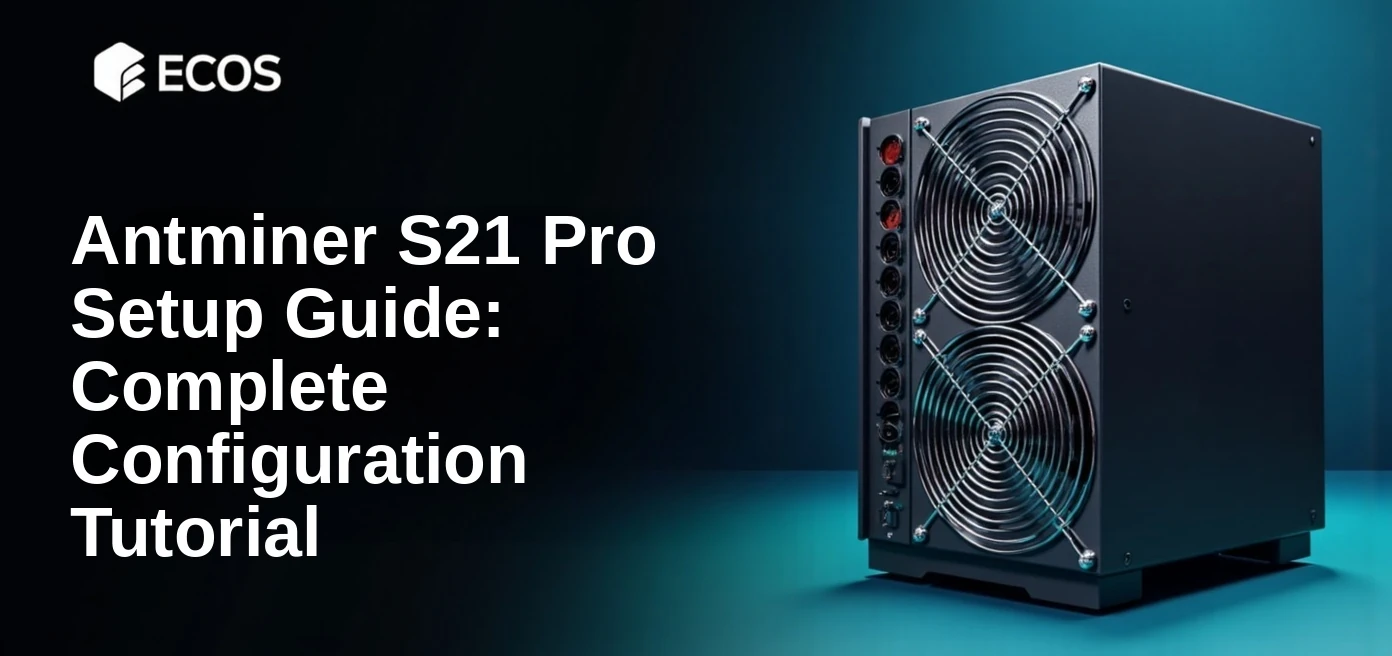
The Antminer S21 Pro, released in July 2024, has become the most popular Bitcoin ASIC miner for professional operations. With 234 TH/s hashrate and 15 J/TH efficiency, it delivers excellent profitability. This guide walks you through complete setup from unboxing to mining your first Bitcoin.
Antminer S21 Pro Specifications
Hardware Specifications:
- Hashrate: 234 TH/s (±3%)
- Power Consumption: 3,510W (±5%)
- Efficiency: 15 J/TH
- Algorithm: SHA-256 (Bitcoin, BCH, BSV)
- Dimensions: 450 x 219 x 293 mm
- Weight: 20 kg
- Noise Level: 76 dB
- Operating Temp: -20°C to 45°C
- Network: Ethernet RJ45
- Fans: 4× high-speed cooling fans
Profitability (December 2025): At $0.07/kWh electricity and $92,000 BTC price, the S21 Pro generates approximately $1,426 daily profit ($42,777 monthly) with ECOS Pool’s 104% FPPS rate.
What You’ll Need
- Antminer S21 Pro unit (includes built-in PSU)
- Ethernet cable (Cat 5e or better)
- Network router with available port
- Computer or smartphone for configuration
- 220-277V power outlet (20A circuit recommended)
- ECOS Pool account (create at ecos.am)
Step 1: Physical Setup & Safety
Choose Location
Place the S21 Pro in a well-ventilated area. The miner generates significant heat (3.5kW) and noise (76 dB). Ideal locations:
- Dedicated mining room with exhaust fans
- Garage or basement with ventilation
- Professional hosting facility
Important: Maintain 10cm clearance on all sides for airflow. Operating temperature should stay below 35°C for optimal lifespan.
Power Connection
The S21 Pro requires 220-277V AC power with a dedicated 20A circuit:
- Verify your outlet provides 220-277V (standard in most countries except US residential)
- Use surge protector rated for 4000W+
- Avoid daisy-chaining multiple miners on single circuit
Safety Warning
Never operate the S21 Pro without proper ventilation. Overheating can reduce hashrate, damage components, and create fire hazards. Monitor temperatures during first 24 hours of operation.
Step 2: Network Configuration
Connect to Network
- Connect Ethernet cable from miner to router
- Power on the S21 Pro (flip switch on PSU)
- Wait 30-60 seconds for boot
- Green LED indicates successful network connection
Find Miner IP Address
Method A – Router Admin Panel:
- Access router admin (typically 192.168.1.1)
- Look for “Connected Devices” or “DHCP Clients”
- Find device named “antMiner” or “Bitmain”
- Note the IP address (e.g., 192.168.1.50)
Method B – IP Scanner:
- Download “Advanced IP Scanner” (Windows) or “Angry IP Scanner” (Mac/Linux)
- Scan your network range (e.g., 192.168.1.1-254)
- Look for Bitmain device
Step 3: Access Miner Interface
Login to Web Interface
- Open web browser
- Enter miner IP address (e.g., http://192.168.1.50)
- Default credentials:
- Username: root
- Password: root
- Click “Login”
Security tip: Change default password immediately in System → Administration → Password
Step 4: Configure ECOS Pool
Pool Configuration
Navigate to Miner Configuration → General Settings
Pool 1 (Primary):
- URL: stratum+tcp://pool.ecos.am:3333
- Worker: your_username.worker_01
- Password: x
Pool 2 (Backup):
- URL: stratum+tcp://pool2.ecos.am:3333
- Worker: your_username.worker_01
- Password: x
Pool 3 (Backup):
- URL: stratum+tcp://pool3.ecos.am:3333
- Worker: your_username.worker_01
- Password: x
Worker naming convention: Use descriptive names like “s21pro_01”, “warehouse_A_rack1”, etc. This helps when managing multiple miners.
Save & Apply
- Click “Save & Apply” button
- Miner will restart (takes 60-90 seconds)
- Check “Miner Status” page for active mining
Step 5: Optimization & Tuning
Frequency & Voltage Settings
The S21 Pro allows performance tuning. Factory defaults provide optimal balance, but you can adjust:
- Standard Mode (default): 234 TH/s @ 3,510W – Best for most users
- High Performance: 245-250 TH/s @ 3,800W – Lower efficiency, more heat
- Low Power: 215-220 TH/s @ 3,200W – Better efficiency, cooler operation
Recommendation: Start with default settings. Only adjust if you have specific cooling constraints or electricity cost concerns.
Fan Settings
Auto fan mode adjusts speed based on temperature. Manual override available if needed:
- Auto (recommended): Maintains optimal temperature
- Manual 60-80%: Quieter but may throttle in hot environments
- Manual 80-100%: Maximum cooling, louder
Step 6: Monitoring & Verification
In web interface, navigate to Miner Status tab:
- Hashrate: Should reach 234 TH/s within 5-10 minutes
- Temp: 60-75°C normal operating range
- Fan Speed: 4000-6000 RPM typical
- Accepted Shares: Should increase steadily
- Hardware Errors: Should be <0.1%
- Login to ecos.am
- Navigate to Dashboard → Workers
- Your worker should appear within 2-3 minutes
- Check 5-minute average hashrate (should match 234 TH/s)
Troubleshooting Common Issues
Miner Not Hashing
- Check pool configuration: Verify URL and worker name exactly match ECOS Pool format
- Network issues: Ping pool.ecos.am to verify connectivity
- Firewall: Ensure port 3333 is not blocked
Low Hashrate (Below 225 TH/s)
- Overheating: Check temperatures (should be <75°C). Improve cooling/ventilation
- Power issues: Verify stable 220-277V supply with multimeter
- Faulty hashboard: Check per-board hashrate in status page. One board should ~78 TH/s
High Hardware Error Rate (>1%)
- Unstable power: Use quality surge protector, check for voltage fluctuations
- Overclocking: Return to default frequency settings
- Temperature extremes: Maintain 20-35°C ambient temperature
Worker Not Appearing in Pool Dashboard
- Wrong username: Worker name must match your ECOS account username exactly
- DNS issues: Try pool IP address instead of hostname
- Wait time: New workers take 2-5 minutes to appear
Alternative S21 Models Comparison
S21 Series Comparison (December 2025)
| Model | Hashrate | Power | Efficiency | Price |
| S21 | 200 TH/s | 3,500W | 17.5 J/TH | ~$4,000 |
| S21 Pro | 234 TH/s | 3,510W | 15 J/TH | ~$5,500 |
| S21 XP | 270 TH/s | 3,645W | 13.5 J/TH | ~$6,500 |
Best choice: S21 Pro offers optimal price/performance. S21 XP worth premium if electricity >$0.08/kWh.
Maintenance Best Practices
- Weekly: Check temperatures, fan operation, hashrate stability
- Monthly: Clean dust from air intakes using compressed air
- Quarterly: Verify all fans spinning at correct speed, check for unusual noises
- Annually: Deep clean hashboards (professional service recommended), replace thermal paste
Expected lifespan: 3-5 years with proper maintenance. Fans are most common failure point (easily replaceable for $30-50 each).
Ready to Start Mining?
Join ECOS Pool and maximize your S21 Pro profitability with 104% FPPS rates
More Questions
No, the S21 Pro requires 220-277V to operate. In the US, you’ll need to install a dedicated 240V outlet (similar to those used for electric dryers or ovens) with a 20A circuit breaker. Hire a licensed electrician to install the proper outlet—this typically costs $150-300. Attempting to run the miner on 110V will result in insufficient power and potential hardware damage
Very little. Bitcoin mining uses approximately 10-50 MB per day—far less than streaming video. A basic broadband connection (10 Mbps) is more than sufficient. However, connection stability matters more than speed. Use a wired Ethernet connection rather than WiFi to avoid disconnections that cause rejected shares and lost earnings
Check three indicators: First, your web interface should show ~234 TH/s hashrate within 10 minutes of starting. Second, “Accepted Shares” should increase steadily every few seconds. Third, your worker should appear on ECOS Pool dashboard within 5 minutes with matching hashrate. If hardware error rate exceeds 1% or temperatures exceed 80°C, something needs attention
Yes, but each miner needs its own power circuit and adequate cooling. For electrical setup, don’t exceed 80% of circuit capacity—one S21 Pro per 20A 240V circuit. For network, a standard router handles 10+ miners easily. Give each miner a unique worker name (e.g., s21pro_01, s21pro_02) so you can monitor them individually on the pool dashboard
At 76 dB, the S21 Pro is comparable to a vacuum cleaner running continuously—too loud for living spaces. You can enable Low Power mode (215-220 TH/s) to reduce fan speed and noise by approximately 5-8 dB, though this sacrifices some hashrate. Most home miners place units in garages, basements, or purpose-built enclosures with sound insulation. Professional hosting is another option if noise is a dealbreaker
Published Articles

Crypto On-Ramps and Off-Ramps Explained: How Fiat and Crypto Move In and Out
Entering the world of digital assets often feels like trying to cross...
 Popular
Bitcoin Pizza Guy: The Story Behind the First Real Bitcoin Purchase
Introduction The history of Bitcoin is full of dramatic ups and downs,...

Crypto Basics Explained: A Beginner’s Guide to Cryptocurrency and Trading
Introduction The world of finance is changing right before our eyes. Just...
 Popular
Uniswap Explained: What It Is, How It Works, and How to Use the UNI DEX
Introduction Decentralization and decentralized platforms that have emerged in recent years have...
 Popular
Bitcoin Lightning Network Explained: What It Is and How Bitcoin Lightning Works
Introduction In the world of cryptocurrency, transaction speed and costs have always...

How Bitcoin ATMs Work: A Complete Guide to Using Crypto ATMs
Introduction Millions of people around the world use cryptocurrencies today – at...