
MetaMask Wallet Explained: How to Set Up and Use It Safely
Introduction
MetaMask is a wallet app and browser extension for managing crypto and authorizing blockchain transactions. It supports Ethereum-compatible networks as well as native Bitcoin and Solana accounts. Your assets remain recorded on their networks; the wallet gives you access to them. This guide explains how to use MetaMask from a first installation through receiving funds, sending a payment, and connecting to an application. The examples use Chrome on a computer, with mobile differences noted where they matter. Before depositing anything, choose your recovery method and understand which information must stay private.
How to Use MetaMask and What It Does
MetaMask is a self-custodial wallet: you control the credentials that authorize spending instead of relying on an exchange to process withdrawals. It prepares transactions and asks you to approve them. A digital signature proves authorization without revealing the secret used to create it. Installing the app does not move existing crypto or give you a balance automatically.
To work out how to use MetaMask with a particular asset, first identify its network. Ethereum and other EVM networks, which run Ethereum-compatible smart contracts, use addresses beginning with 0x. A smart contract is a program on a blockchain. Solana and Bitcoin have their own address formats. Copy the address listed for the intended network, even when several addresses appear under one account name.
An address is the destination you share to receive funds. A private key is secret data used to sign for a particular account. A Secret Recovery Phrase, or SRP, restores the keys derived from that wallet's phrase. The password has a separate role, which depends on the setup method. Confusing these items can turn an ordinary support question into a loss of wallet access.
Install MetaMask in Chrome
Start from the official MetaMask website, reached independently. Search ads, direct messages, and copied store listings can lead to impostors. The product's own download page directs you to the appropriate browser store. The following steps cover Chrome; menu labels may change as the extension is updated.
- Open MetaMask's official download page and choose the Chrome extension. Follow its route to the Chrome Web Store.
- Select Add to Chrome, review the requested browser permissions, and confirm Add extension.
- Open the extension from Chrome's toolbar. Pin it if you want easy access, then choose whether to create or import a wallet.
On a phone, use the official download page to reach the iOS or Android store listing. Install the mobile app rather than attempting to add a desktop extension to the phone's browser. A familiar fox icon is not enough to establish authenticity. Check that the listing is the one reached from the official source.
How to Set Up MetaMask
The setup screen offers a new wallet or an existing one. Choose deliberately. Creating another wallet generates different credentials and addresses; it will not reveal funds held by an older wallet. For a new wallet, decide between managing a recovery phrase yourself and the available social-login option.
Create a Wallet With a Recovery Phrase
- Choose Create a new wallet and select the Secret Recovery Phrase method.
- Set a strong, unique password. In this setup, it protects access to the wallet's encrypted local data on that installation.
- Record the phrase privately, offline, in its original order and language. Complete the wallet's backup check before adding money.
MetaMask generates a 12-word English phrase for a new wallet. Do not translate those words, photograph them, or paste them into an online document. Store the backup where it is protected from theft and damage. A replacement computer can restore accounts derived from the phrase, but a forgotten password alone cannot recreate the keys.
Create a Wallet With Social Login
Google and Apple login are available in the extension and mobile onboarding flows. Telegram is also listed for the extension. Use the choices presented by the current official installation rather than a third-party login page.
- Choose a social-login provider offered during new-wallet setup and authenticate with the account you intend to keep using.
- Create a unique MetaMask password and protect it carefully. Restoring through social login requires both the linked account and that password.
- Review the recovery settings. You can reveal and save the wallet's SRP as a fallback, keeping any exported copy offline and private.
Social login still uses an SRP behind the scenes. MetaMask describes an encrypted online backup whose access uses distributed cryptographic key shares. This differs from a conventional phrase-only wallet's local-storage setup. Linking a social account is not an ordinary email password-reset service. Protect that account too, including its authentication settings.
Import an Existing Wallet
- On the initial setup screen, choose I have an existing wallet. For a wallet already open, use the account selector, Add wallet, then Import a wallet.
- Restore with the existing wallet's supported SRP, or sign in with the previously linked social account and MetaMask password.
- Check the restored addresses against your records before sending funds. Reconnect hardware wallets or import separate accounts when required.
A single private-key import brings in one supported account; it does not restore an entire wallet. Bitcoin private-key import is not currently supported, and MetaMask's Bitcoin accounts use Native SegWit, a particular Bitcoin address and key-derivation format. Check compatibility before importing an older Bitcoin wallet. Never enter recovery words into a dApp, support chat, or unsolicited popup.
Receive Crypto in Your Wallet
For a first deposit, choose an asset and network that both the sending service and MetaMask support. A token name is insufficient: USDC can exist on several networks. Learning how to use MetaMask includes recognizing that the same ticker can represent separate balances on different blockchains.
- Select the receiving account and open its address list. Copy the address for the exact network you plan to use.
- In the sending wallet or exchange, choose that same network and asset. Confirm any deposit requirements at the destination.
- Paste the address and compare the complete result with the wallet display. For a meaningful amount, send a small test first, allowing for fees and minimums.
- Wait for confirmation, then inspect the receiving account's balance. If it is absent, look up the transaction status before trying again.
On mobile, the copy-address control beside the account name opens the network-specific address list. Native BTC goes to the Bitcoin address. Sending a Bitcoin-representing token on Ethereum is a different operation and uses the relevant EVM address. MetaMask's native Bitcoin support does not make these two assets interchangeable.
You can also buy crypto through providers offered in the wallet. Availability depends on the region, payment method, and provider. Check the quote, identity requirements, fees, and delivery network. A purchase through an external provider may involve processing delays before an on-chain payment reaches your account.
Send Crypto and Track the Payment
Open the wallet itself when preparing a payment. A receiving address copied from recent transaction history may belong to an attacker using address poisoning, where misleading transfers are placed in your history to encourage copying the wrong destination. Confirm the address with the recipient through a trusted channel.
- Choose the account holding the funds, click Send, and select the network and asset.
- Enter the recipient address and amount. Verify that the destination accepts that asset on that network.
- Review the full address, amount, and estimated fee. Leave enough funds for the payment's costs, then confirm only if the details match your intention.
- Follow the entry in Activity. Open its transaction details or the network's block explorer to check the recorded outcome.
Mobile screens may ask for the amount before the destination address. The order differs, but the same checks apply. Submitted means the transaction has been sent for processing. Pending means it has not finished; it is not an instruction to send another copy. A failed on-chain transaction may still consume a network fee.
Understand Network Fees and Service Charges
Network fees compensate the blockchain's processing mechanism. On Ethereum, they are commonly called gas and ordinarily paid in ETH. Solana uses SOL, while Bitcoin fees come from BTC. Other networks can use different native assets. Do not assume an ETH balance on Ethereum pays costs on every chain.
MetaMask also offers gas-included transactions on supported networks and eligible operations, allowing the fee to be covered with another eligible token. Some operations may qualify for sponsorship. Availability is conditional. Read the confirmation screen to see which asset pays and what you receive; an alternative payment method does not mean fees have disappeared.
Service charges are separate. An exchange withdrawal, fiat purchase, swap, or bridge can carry costs beyond the network fee. Compare the total debited with the expected amount delivered. Token prices can move while you review a quote, and a quote's expiry may require refreshing it before confirmation.
Connect to a dApp Without Signing Blindly
A decentralized application, or dApp, uses blockchain programs for some of its functions. Its website still has a domain and can be impersonated. A wallet connection typically lets it see selected addresses and request actions. Those later requests deserve their own review. Connecting is only the beginning of an interaction.
- Open the application through a verified source and check the complete domain. Avoid links supplied by unsolicited messages.
- Choose Connect wallet, select MetaMask, and review the requested account access inside the wallet.
- Select the intended account and network. Approve the connection only if the requesting site is the one you opened.
- Read each subsequent request separately. Reject it if the destination, permissions, or purpose does not match what you intended to do.
On mobile, use the app's built-in browser where supported, or the dApp's supported mobile connection flow. A page asking you to type your recovery phrase to connect is a warning sign. Knowing how to use MetaMask safely means keeping that phrase out of websites, regardless of how convincing their branding looks.
Connection Messages Approvals and Transactions
A message signature may prove account ownership for login, but some signatures authorize token-related actions. Read the content and token details. A prompt titled Sign can have consequences without an immediate network fee. Fee-free does not mean harmless.
For Ethereum-compatible tokens, an approval grants a contract permission to spend a specified token up to an allowance. Check the spender and amount. Unlimited approval can expose future deposits too. A transfer or other transaction changes blockchain state and usually involves fees. Neither the connection nor an earlier approval means every later transaction has already been authorized.
Disconnecting a site removes its wallet connection; an existing on-chain allowance may remain. Review unwanted allowances through a trusted approval-management tool and revoke them if appropriate. Revocation itself generally requires a transaction and fee. If a recovery phrase has leaked, revoking approvals does not fix the compromised keys.
Swaps Bridges and Switching Networks
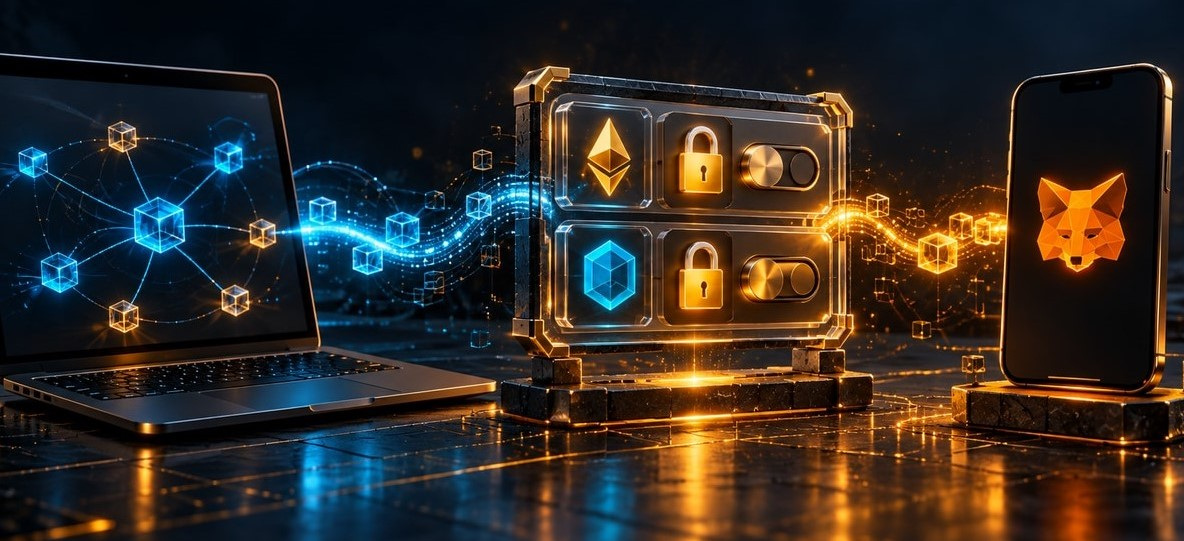
A swap exchanges one asset for another. MetaMask can route supported exchanges, including cross-network routes in available flows. A bridge involves moving value between networks, with its own settlement process and risks. Check the source chain, destination chain, asset received, and total costs before approving either action.
Changing the selected network only changes what you are viewing or preparing to use. It does not move tokens. For example, selecting Base after viewing Ethereum will not turn an Ethereum USDC balance into Base USDC. A supported transfer route is needed. Its quoted output can differ from your input after fees and price impact, the change in price caused by the trade.
Recover Access and Add Another Device
For a phrase-based wallet, restoration uses the SRP and a new local password. Separate imported private-key accounts and hardware-wallet connections may need to be added again; one phrase does not derive every account ever shown in your app. Backup-and-sync features can change what is restored, so check the actual addresses after recovery.
A social-login wallet can restore linked wallets and accounts using the same provider identity and MetaMask password. Importing additional wallets into that instance links them to the social account under the current flow. Consider that before importing a wallet you intend to keep separate. Hardware-wallet access still depends on its device and recovery arrangements.
If you forget a social-login password, do not expect an email reset. A saved SRP may provide an independent restoration route, without restoring the social-login relationship. Supported mobile biometric recovery may help in particular circumstances, but it is not a universal fallback. Before resetting or deleting an installation, verify your backups and the credentials required for each account.
Troubleshoot a Missing Balance
Begin with the account and network. Check the public transaction record: was the payment confirmed, and did it reach the address you control? If it remains pending at the sender, importing a token will not accelerate it. If the destination is wrong, adding the correct token display cannot reverse the transfer.
Once the record shows the right token at the right address, check whether MetaMask is hiding it. On EVM networks, importing a verified token contract can add its display. Verify that contract for the selected chain through the issuer's official information. Unknown tokens appearing unexpectedly may be spam; do not follow embedded promotional links or sign requests to unlock them.
Key Takeaways
Choose your recovery method before funding the wallet, and preserve the credentials it actually needs.
Use the address for the receiving network. A matching token name alone is insufficient.
Review the total cost and status before repeating an apparently delayed payment.
Treat wallet connections, message signatures, token allowances, and transactions as separate decisions.
Switching networks does not transfer assets, and disconnecting a dApp does not automatically revoke its allowances.
Expert Insight
Gemini's Cryptopedia puts the key-security rule plainly: "the private key should never be shared with anyone else." That advice appears in Public and Private Keys: FAQs Answered. In MetaMask, the same caution extends to the SRP and any exported keys. The receiving address can be shared; the information that authorizes spending belongs only in the wallet's trusted recovery process.
This matters when help arrives unexpectedly. A legitimate troubleshooting conversation can work with a public address or transaction identifier. It has no reason to ask for the secret that controls the funds. Close the conversation if it does.
Conclusion
Start with a small transfer after installation and backup. It gives you a chance to check the network address, fee, and Activity status before a larger payment. As you learn how to use MetaMask with dApps, read each request inside the wallet. Keep recovery credentials private, and review which accounts your chosen restoration method covers. The wallet's convenience cannot remove the need to check what you authorize.
FAQ
- Does MetaMask support native Bitcoin and Solana?
Yes. Use their network-specific addresses. An Ethereum address is not a substitute for a native Bitcoin or Solana receiving address.
- Can I restore MetaMask without entering an SRP?
A wallet set up with social login can use its linked account and MetaMask password. Phrase-based recovery requires the relevant backup.
- Do I always need ETH for fees?
No. Fees depend on the network and operation. Eligible gas-included transactions can also let you pay with another supported token.
- Does disconnecting a dApp remove its spending permission?
Not necessarily. On-chain token allowances may remain and require a separate revocation transaction. Review the spender and network before acting.
- Why are my tokens missing from the wallet?
Check the account, network, destination, and transaction status first. Only then investigate token visibility or import a verified contract where appropriate.
Published Articles
Best Crypto Wallets: Security, Features, and Expert Recommendations
Compare the most secure crypto wallets for mobile and hardware use. Review key protection, recovery, security audits, and risks before choosing a wallet.
Bitcoin vs XRP Explained: Technology, Speed, and Investment Comparison
Compare XRP vs Bitcoin by technology, transaction speed, fees, supply, decentralization, and investment risks. Understand how Ripple differs from XRP.
Hardware Wallet Explained: How Cold Storage Protects Cryptocurrency
Learn how a hardware crypto wallet protects private keys, how to set one up, and what to check when backing it up, signing transactions, or recovering access.
What Is Quant (QNT)? The Cryptocurrency Explained
Discover how Overledger works, what the QNT token is used for, and what to check when following its price, buying in Germany, or choosing a wallet.
How to Buy New Crypto Before Listing
Learn how to buy new crypto before listing through presales, launchpads, and DEXs. Understand token launches, US eligibility, vesting, and common risks.
Stablecoins Explained: List, Examples, and Safety Comparison
Use this list of stablecoins to compare their backing and risks, and learn how to assess safety, redemption options, liquidity, and price stability.